23 September 2026 · 6 minute read
How to force quit an app on a Mac
An app has stopped responding. The pointer is a spinning colour wheel, clicks do nothing, and the window won't close. Here are five ways to kill it, in the order worth trying — the first one works almost always, and the last one works when nothing else will.
Before you do anything: wait ten seconds. A spinning wheel often means the app is busy, not dead — saving a large file, waiting on a slow network drive, rebuilding an index. macOS recovers on its own more often than people expect, and waiting costs you nothing compared to losing unsaved work.
1. Command+Option+Escape (the one to remember)
Press ⌘+⌥+Esc. A small window called Force Quit Applications appears, listing your running apps. Anything stuck is usually marked (not responding) in red.
Select it, click Force Quit, confirm. Done.
This is the direct equivalent of the Ctrl+Alt+Delete reflex from Windows, and it's worth committing to memory — it's the shortcut that still works when the app in front has stopped painting its own window.
2. Option + right-click the Dock icon
Hold Option and right-click (or Control-click) the app's icon in the Dock. The Quit item in the menu changes to Force Quit. Click it.
Quicker than the shortcut if your hand is already on the mouse, and it skips the confirmation.
3. The Apple menu
Click the Apple menu at the top left. Normally you'll see Force Quit…, which opens the same window as method 1. Hold Shift while the menu is open and it becomes Force Quit [name of the front app] — one click, no window, no list to scan.
4. Command+Option+Shift+Escape — no window at all
Hold ⌘+⌥+⇧+Esc for about three seconds. The app in front is force quit immediately, with no dialog and no confirmation.
It's the fastest route by some distance, but it's unforgiving: whatever is in front dies. Make sure the frozen app really is the front one before you use it.
5. From a process list — when it isn't really an "app"
Methods 1 to 4 only see apps with a window and a Dock icon. Background helpers, renderer processes and command-line tools won't appear in the Force Quit list at all, and those are often the ones actually pinning your CPU.
For those, open Activity Monitor (Applications ▸ Utilities, or ⌘+Space and type "activity"), find the process, select it, and click the ✕ in the toolbar. You get a choice of Quit or Force Quit.
Sort by the % CPU column to find the culprit quickly. A process sitting at 100% or higher — yes, higher, since the figure counts each core — is usually the one you're looking for.
A faster route to the process list
Activity Monitor does the job, but it's buried in a folder most people never open and has no keyboard shortcut of its own.
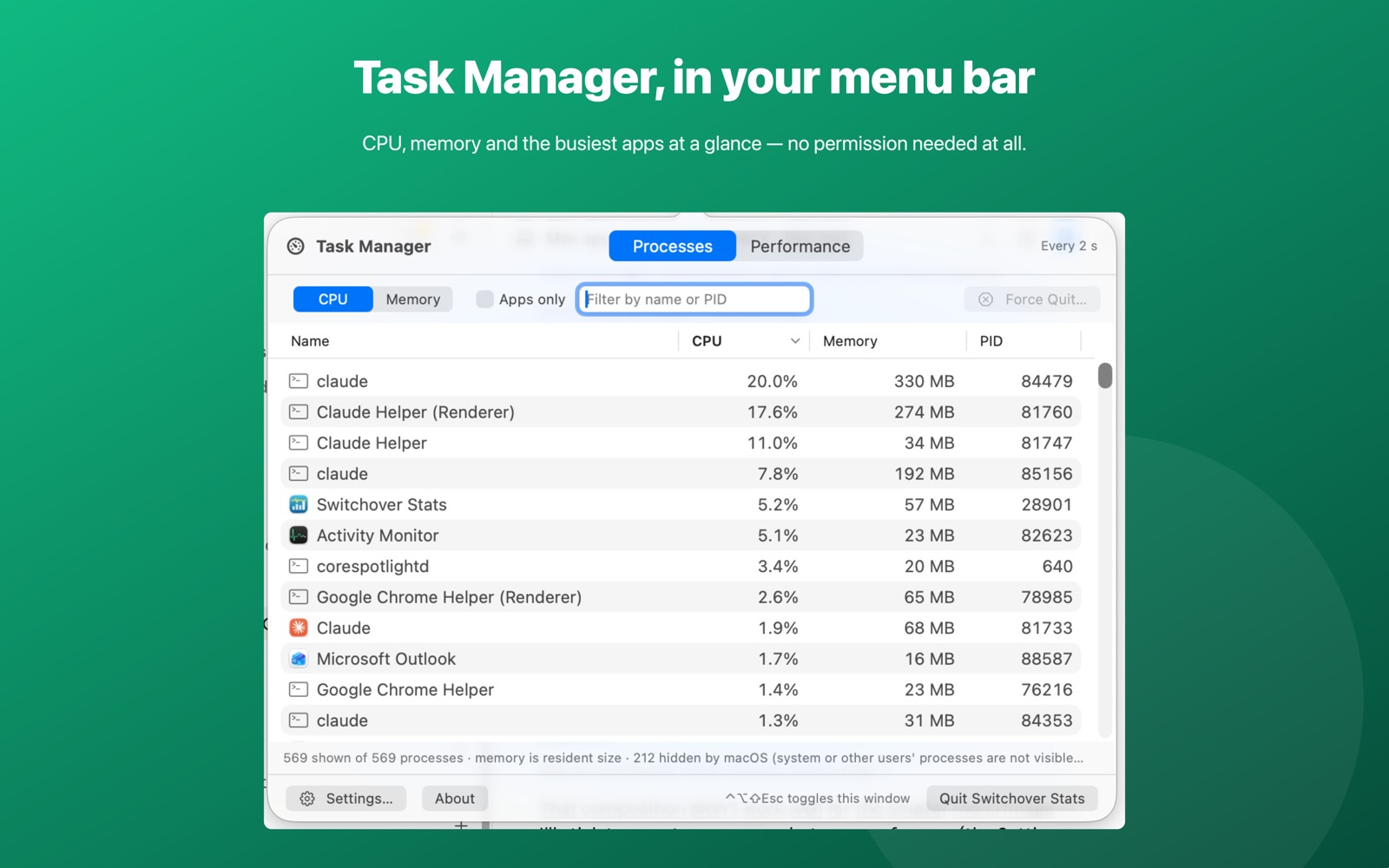
Switchover Stats is a small menu bar app that puts it back where a Windows switcher expects it. Press Ctrl+Alt+Shift+Esc in any app and a Task Manager window opens: every process you're allowed to see, with CPU, memory and PID, sortable by any column and filterable by name. Select one of your own apps and force quit it — it confirms first, and never touches system processes.
Live CPU, memory, network and battery readouts sit in the menu bar, which answers "what's making the fan loud" without opening anything at all.
It asks for no permission of any kind — no Accessibility, no Screen Recording, no Full Disk Access — and has no network access, so nothing can leave your Mac. It reads the same public system counters Activity Monitor does.
Switchover Stats on the Mac App Store · full feature list
When the whole Mac is frozen
If the pointer itself won't move and none of the above responds, the app has taken the system down with it — or the system has a problem of its own.
- Wait a full minute. Genuinely. Kernel-level stalls often clear.
- Try ⌘+⌥+Esc once more — it sometimes gets through when clicks don't.
- If you can still reach it, open Terminal and type
killall "App Name", orsudo killall -9 "App Name"if that doesn't work. - Last resort: hold the power button for about ten seconds until the Mac switches off, then press it again to start up.
Step four discards unsaved work in every open app, not just the frozen one, which is why it comes last.
Does force quitting lose your work?
In that one app, yes — anything unsaved is gone. Other apps and the system are unaffected.
Before you despair, though: most modern Mac apps autosave. Pages, Numbers, Keynote, TextEdit, Preview and anything else using macOS's document model will usually offer the recovered version when you reopen them. Microsoft Office keeps its own AutoRecover copies. It's worth reopening the app before assuming the work is lost.
Quick reference
| Situation | Do this |
|---|---|
| App is stuck, you have a moment | ⌘+⌥+Esc, select, Force Quit |
| Hand already on the mouse | Option + right-click the Dock icon ▸ Force Quit |
| Kill the front app instantly | Hold ⌘+⌥+⇧+Esc for 3 seconds |
| It's a background process, not an app | Activity Monitor ▸ ✕ — or Ctrl+Alt+Shift+Esc with Switchover Stats |
| Whole Mac frozen | Wait a minute, then hold the power button 10 seconds |
Related
- Windows keyboard shortcuts on a Mac: the full table
- Ctrl+Alt+Delete on a Mac: the Task Manager equivalent
- The Windows shortcuts Mac switchers miss, and how to get them back
- Why is my Mac fan so loud?
- Switchover Stats — Task Manager in your menu bar
Switchover · All apps · Support · Privacy · Terms
Copyright © 2026 Thanujan Sathiyamoorthy. All rights reserved. Switchover is an independent product and is not affiliated with Apple Inc. or Microsoft Corporation. Windows is a trademark of Microsoft Corporation; Mac and macOS are trademarks of Apple Inc. No part of this site may be reproduced or redistributed without permission.
See also: Snipping Tool on a Mac — the Win+Shift+S and Print Screen equivalents.
See also: Alt+F4 on a Mac — closing a window versus quitting the app.