29 September 2026 · 8 minute read
Windows keyboard shortcuts on a Mac: the full table
Switching from Windows costs you about a week, and almost none of it is spent learning the Mac. It is spent on your own fingers doing things that no longer work. Here is the whole translation in one place, so you can stop searching for them one at a time.
The single rule that covers most of it: Ctrl becomes Command. Nearly every Windows shortcut using Ctrl uses ⌘ on a Mac. Macs do have a Control key, but it does different things — which is exactly why pressing it out of habit seems to do nothing at all.
Editing — these just work, with ⌘ instead of Ctrl
| Windows | Mac | |
|---|---|---|
| Ctrl+C | ⌘+C | Copy |
| Ctrl+V | ⌘+V | Paste |
| Ctrl+X | ⌘+X | Cut — text only, see below for files |
| Ctrl+Z | ⌘+Z | Undo |
| Ctrl+Y | ⌘+⇧+Z | Redo |
| Ctrl+A | ⌘+A | Select all |
| Ctrl+F | ⌘+F | Find |
| Ctrl+S | ⌘+S | Save |
| Ctrl+P | ⌘+P | |
| Ctrl+N | ⌘+N | New |
Moving the cursor — where it gets awkward
This is the group that catches people out, because the keys exist but do something different.
| Windows | Mac | |
|---|---|---|
| Home | ⌘+← | Start of the line |
| End | ⌘+→ | End of the line |
| Ctrl+Home | ⌘+↑ | Top of the document |
| Ctrl+End | ⌘+↓ | Bottom of the document |
| Ctrl+←/→ | ⌥+←/→ | Move a word at a time |
| Delete (forward) | fn+⌫ | The Mac's "Delete" key is Backspace |
On a Mac laptop there are no Home and End keys at all, which is why the habit fails silently rather than doing something wrong.
Files and Finder
| Windows | Mac | |
|---|---|---|
| F2 (rename) | Return | Select the file and press Return |
| Return (open) | ⌘+↓ | The exact opposite of Windows, which trips up nearly everyone |
| Ctrl+X then Ctrl+V on a file | ⌘+C then ⌘+⌥+V | Finder has no cut. Copy, then Move Item Here |
| Delete | ⌘+⌫ | Move to Bin |
| Shift+Delete | ⌘+⌥+⌫ | Delete immediately |
| F5 / Ctrl+R | ⌘+R | Refresh, in apps that have it |
| Win+E | ⌥+⌘+Space | Opens a Finder search window from anywhere. Already in Finder, ⌘+N opens a plain new window |
The Finder cut is the one people ask about most. We wrote it up separately in how to cut and paste files on a Mac.
Windows, apps and the system
| Windows | Mac | |
|---|---|---|
| Alt+Tab | ⌘+Tab | Switches apps, not windows. See the note below |
| (cycle windows of one app) | ⌘+` | Backtick, above Tab |
| Alt+F4 | ⌘+W or ⌘+Q | W closes the window, Q quits the app — a real distinction on macOS |
| Ctrl+W | ⌘+W | Close the tab |
| Ctrl+Alt+Delete | ⌘+⌥+Esc | Force Quit |
| Ctrl+Shift+Esc | Activity Monitor | In Applications ▸ Utilities, no shortcut of its own |
| Win+L | ⌃+⌘+Q | Lock the screen |
| Win+D | fn+F11 | Show Desktop |
| Win+Tab | ⌃+↑ | Mission Control |
| Win+Shift+S | ⌘+⇧+4 | Snip a region |
| PrtScn | ⌘+⇧+3 | Whole screen |
| Win+V | — | No clipboard history in older macOS; macOS 26 added a basic one in Spotlight |
| Win+←/→ | Drag to the screen edge | macOS tiles on drag rather than by keyboard |
Alt+Tab is the one with no real equivalent. ⌘Tab moves between apps; if you have six Chrome windows open it treats them as one. ⌘` then cycles within that app. There is no built-in single shortcut that walks every window the way Alt+Tab does, and that is a genuine gap rather than something you are missing.
Rather than memorise all of that
A table you have to keep coming back to is not much of a solution. The problem is that you need the translation at the moment your hand hits the wrong key, not later in a browser tab.
Switchover Cheat Sheet puts it in front of you. Press ⌃+⌥+/ in any app and an overlay shows that app's shortcuts, each one paired with the Windows shortcut you already know. It detects the app you are in, so in Word you get Word’s and in Chrome you get Chrome’s.
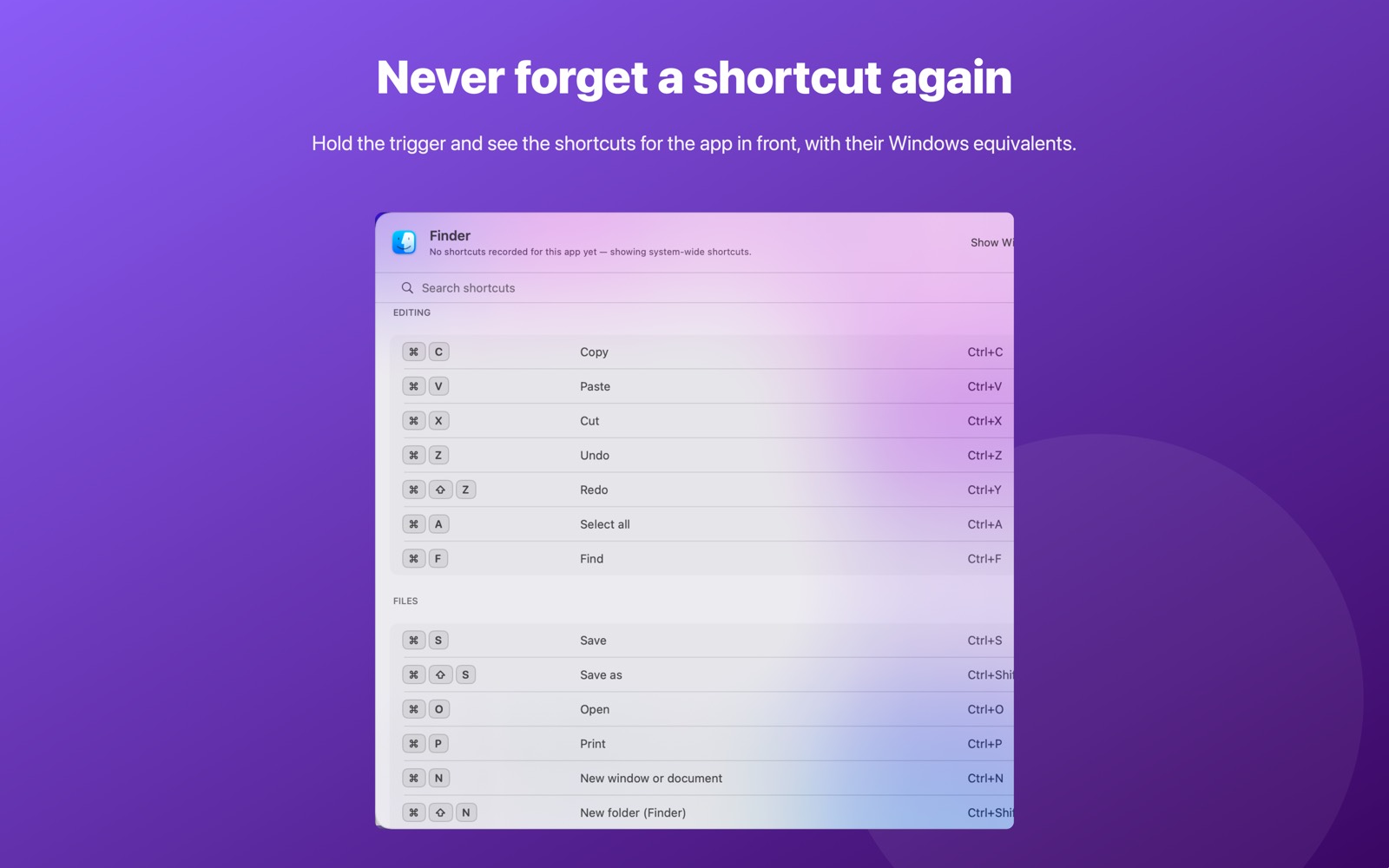
The bundled library is 375 shortcuts: a system-wide set that applies everywhere, including Finder, plus app-specific sets for Safari, Chrome, Mail, Notes, Pages, Numbers, Keynote, Word, Excel, PowerPoint, Outlook, Teams, Slack, Xcode, Terminal, Visual Studio Code, Preview, Photos and Messages. In an app it does not know, it falls back to the system-wide set and says so.
It asks for no permissions at all — not Accessibility, not Screen Recording, not Input Monitoring. It cannot read your screen or the contents of other apps. It asks macOS which app is in front, which needs no permission, and looks the answer up in its own list. It has no network access either.
Switchover Cheat Sheet on the Mac App Store · what it does in full
And if you would rather keep the Windows keys
Learning the Mac way is the right long-term answer, but there is no prize for doing it in week one. Switchover maps several of the habits above back onto the keys you already use: ⌘X and ⌘V genuinely move files in Finder, Home and End behave the Windows way, ⌃⌥⌫ opens Activity Monitor, and ⌥F4 closes a window. Every feature has its own switch, so you can turn them off one at a time as the Mac way sinks in.
Related
- The 7 Windows shortcuts Mac switchers miss most
- How to cut and paste files on a Mac
- Ctrl+Alt+Delete on a Mac
- Home and End keys on a Mac
- The Windows key on a Mac keyboard
- F2 on a Mac: how to rename a file
Switchover · All apps · Support · Privacy · Terms
Copyright © 2026 Thanujan Sathiyamoorthy. All rights reserved. Switchover is an independent product and is not affiliated with Apple Inc. or Microsoft Corporation. Windows is a trademark of Microsoft Corporation; Mac, macOS and Finder are trademarks of Apple Inc. No part of this site may be reproduced or redistributed without permission.