22 September 2026 · updated 23 September · 6 minute read
Ctrl+Alt+Delete on a Mac
Something has stopped responding, you reach for Ctrl+Alt+Delete, and nothing happens. On a Mac that combination has no meaning at all. Worse, the one thing it did on Windows — a single door to "something is wrong, let me deal with it" — is split across two different places on macOS.
If an app is frozen: Command+Option+Escape
Press ⌘⌥Esc and you get Force Quit Applications: a short list of running apps, with anything misbehaving usually marked "(not responding)". Select it, click Force Quit, done. This is the closest thing to the reflex you have.
Two other ways to the same result:
- Hold Option and right-click the app's icon in the Dock — the Quit item becomes Force Quit.
- From the Apple menu (top left), hold Shift and Force Quit appears with the front app already named.
Worth knowing: force quitting discards unsaved work in that app, exactly as on Windows. Try clicking into the app and waiting ten seconds first — macOS often recovers on its own.
If you want Task Manager: Activity Monitor
For the other half of the reflex — what is eating my CPU, why is the fan loud, how much memory is left — the app is Activity Monitor, in Applications ▸ Utilities. It shows processes with CPU, Memory, Energy, Disk and Network tabs, and the ✕ button in the toolbar quits a selected process.
It does the job well. The problem is purely that it is buried: it has no keyboard shortcut and lives in a folder most people never open. Fastest built-in route is Spotlight — ⌘Space, type "activity", press Return.
If you are going to use it often, drag it to the Dock once and save yourself the search.
Making it one keystroke
Switchover maps both Windows habits onto Activity Monitor: ⌃⌥⌦ (Control+Option+Delete) and ⌃⇧Esc (Control+Shift+Escape, the Windows shortcut that goes straight to Task Manager) both open it directly.
It also puts CPU and memory in the menu bar, with the busiest apps listed when you click the icon. In practice that answers the question most of the time without opening anything — which is really what the Windows habit was for.
Or an actual Task Manager: Switchover Stats
If what you really miss is the window itself — the sortable list, the End Task button, the graphs — Switchover Stats is a separate app that reproduces it properly.
Press ⌃⌥⇧Esc (Control+Option+Shift+Escape) in any app and a Task Manager window opens: every process you're allowed to see, with its CPU, memory and PID, sortable by any column, filterable by name, or narrowed to apps only. Select one of your own apps and force quit it — it confirms first, the way Windows does. A Performance tab keeps sixty seconds of history for CPU with a per-core strip, memory, and network up and down, plus a battery card with time remaining.
Live CPU, memory, network and battery readouts sit in the menu bar meanwhile, and you choose which ones appear and what threshold turns a value red.
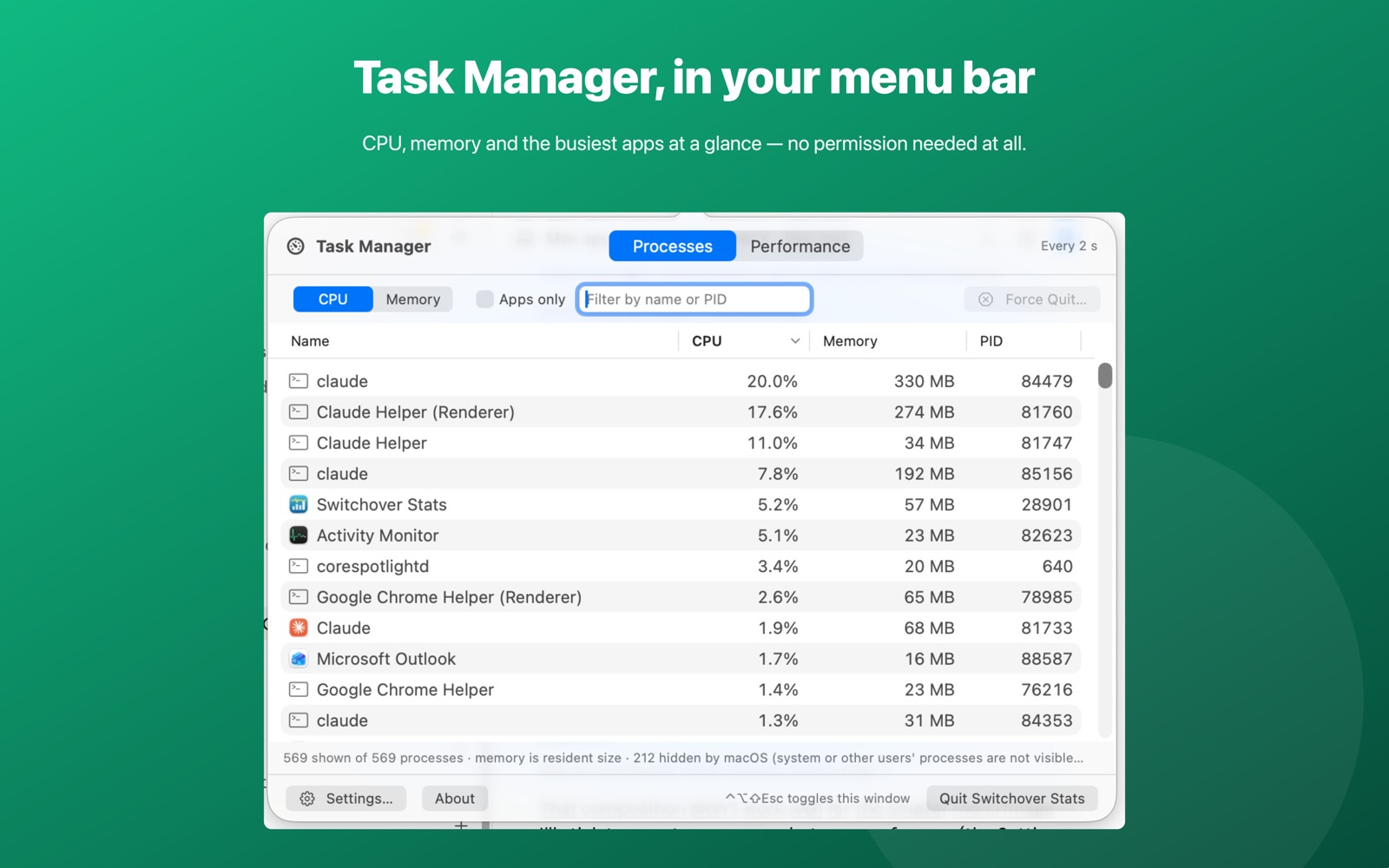
The thing worth knowing about it: it asks for no permission at all. Not Accessibility, not Screen Recording, not Full Disk Access — and it has no network access, so nothing can leave your Mac even in principle. It reads the same public system counters Activity Monitor does. Most Mac system monitors ask for considerably more than that.
Honest limit: the App Store sandbox hides root-owned system processes, so the list shows what your account is allowed to see and says so in its status line, rather than demanding extra privileges. Force Quit works on your own visible apps.
Switchover Stats on the Mac App Store · what it does in full
Quick reference
| You want to | Windows | macOS, built in |
|---|---|---|
| Deal with a frozen app | Ctrl+Alt+Delete | ⌘⌥Esc (Force Quit) |
| Open Task Manager | Ctrl+Shift+Esc | Activity Monitor, in Utilities — or ⌃⌥⇧Esc with Switchover Stats |
| Lock the screen | Win+L | ⌃⌘Q |
| Sign out | Ctrl+Alt+Delete ▸ Sign out | ⇧⌘Q |
That third row is the other thing Ctrl+Alt+Delete was used for daily — locking the screen when you step away. On a Mac it is Control+Command+Q.
Related
- Windows keyboard shortcuts on a Mac: the full table
- The Windows shortcuts Mac switchers miss, and how to get them back
- How to cut and paste files on a Mac
- Home and End keys on a Mac
- Switchover Stats — Task Manager in your menu bar
Copyright © 2026 Thanujan Sathiyamoorthy. All rights reserved. Switchover is an independent product and is not affiliated with Apple Inc. or Microsoft Corporation. Windows is a trademark of Microsoft Corporation; Mac and macOS are trademarks of Apple Inc.
See also: Alt+F4 on a Mac — closing a window versus quitting the app.