Switchover › Apps › Switchover Taskbar
A taskbar for your desktop
Switchover TaskbarIn review
Miss having a taskbar? Switchover Taskbar puts one back, right where it always was: a thin bar across the bottom of your screen.
Requires macOS 14 Sonoma or later. No account, no network access, nothing collected.
What it does
One button per window
Every open window gets its own button, grouped by app and kept in the order you opened them, so they don't shuffle around while you work. The window in front is highlighted, so you always know where you are.
Click to switch, right-click to close
Click a button to bring that window forward. Right-click for Close Window or Quit App. Hover to see the full title.
A Start button, Show Desktop and the clock
The Start button opens Launchpad, the closest thing macOS has to the Start menu. A Show Desktop button and a clock sit at the right, just like Windows — click the clock to see today's date.
Win+1…9, as Ctrl+Option+1…9
Jump straight to the 1st through 9th button on the bar without reaching for the mouse.
Every screen, every Space, and out of the way when you want
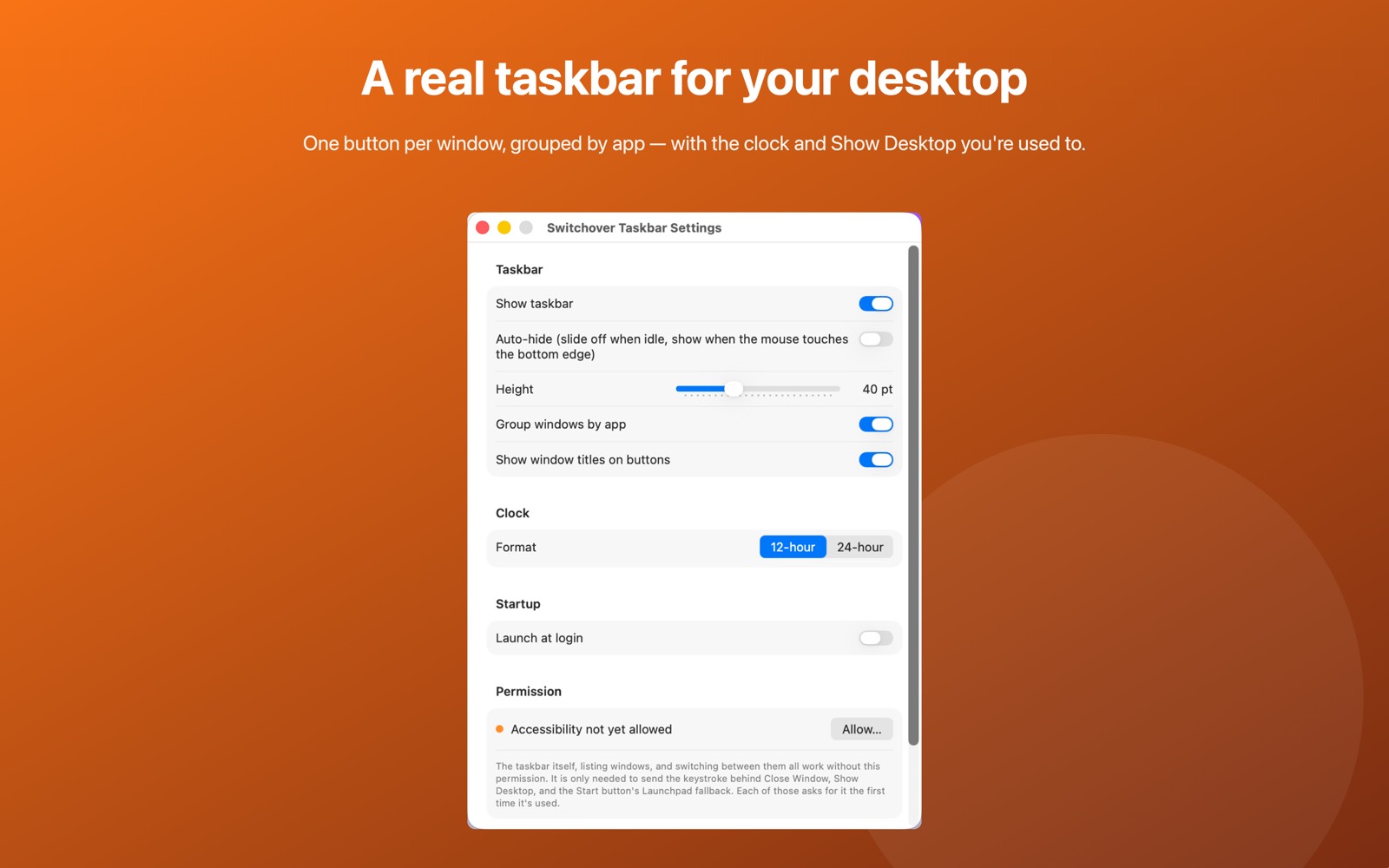
Plug in a second monitor and each screen gets its own taskbar showing only that screen's windows. The bar follows you across every Space, including full-screen apps. Turn on auto-hide and it slides away, then reappears the instant your mouse touches the bottom edge.
Getting started
Open Switchover Taskbar once and the bar appears along the bottom of the screen. Everything else is in its settings window, reachable from the menu bar icon.
Permissions and privacy
The taskbar itself — listing windows and switching between them — works with no permission at all. Accessibility is needed only to send the one keystroke behind Close Window, Show Desktop and the Start button's Launchpad fallback, and it asks the first time you use one of those. Screen Recording is optional: without it, buttons show the app's name instead of the full window title.
Switchover Taskbar has no network access and collects nothing — no analytics, no accounts, no third-party SDKs. Its settings stay in its own sandbox on your Mac. Full detail in the privacy policy.
The rest of the family
Each Switchover app restores one Windows habit, and each one works on its own.
- Switchover — the main app: cut and paste files, clipboard history, and the keys you miss
- Switchover Mouse — Windows mouse habits, kept
- Switchover Stats — Task Manager in your menu bar
- Switchover Snip — Snipping Tool habits, kept
- Switchover Expand — A fast, private text expander
- Switchover Cheat Sheet — Every shortcut, with its Windows twin
Switchover · All apps · Support · Privacy
Copyright © 2026 TJ. All rights reserved. The Switchover apps are independent products and are not affiliated with Apple Inc. or Microsoft Corporation. Windows is a trademark of Microsoft Corporation; Mac, macOS and Finder are trademarks of Apple Inc. No part of this site may be reproduced or redistributed without permission.